INTRODUCTION
This manual contains an introduction to the battery lecterns, and details on its operation, management, and maintenance.
Please note that this manual may be updated without prior notice.
DISCLAIMER
Please read and ensure that you understand this document fully before using the product. Improper use of this product may cause serious injury to yourself or others, or cause product damage and property loss. Before you use this product, it is deemed that you understand, approve, and accept all the terms and content in this document.
To Contact Our Technical Support Helpdesk:
support@saturnvisual.com
0161 971 4600
1. ABOUT BATTERY DID LECTERN
The Digital Display Lectern features a double‑screen setup that shows vehicle information through a purpose‑built app. The lectern is powered by an internal battery, which runs both the screens and the media player. It is designed to be easy to use and fully mobile, so it can be positioned at suitable locations in the showroom.
2. DAILY OPERATIONS
- All units are ready to use once installed and commissioned.
- A healthy battery will typically last at least 10 hours on a full charge.
- A healthy battery will typically take 1-2 hours to charge.
- Please charge the lectern at the end of each working day to maintain good battery life and ensure it is ready for the next morning.
- The discharge limit is set to 20% from factory. Please do not allow the battery level drop below 20% during the day, as the lectern will power off unexpectedly.
IMPORTANT NOTICE:
- If the battery goes below 20%, the lectern will power off. This abrupt shutdown can cause the PC to shut down incorrectly which can lead to a faulty unit.
- Any damage caused by a full battery drain is not covered under warranty, and the PC may need replacing. The discharge limit can be changed if required.
- If the batteries are turned off. They will typically need to be charged to 20% before the screens can turn on.
3. HOW TO TURN THE LECTERN OFF SAFELY
***CRITICAL: THE PC MUST ALWAYS BE SHUT DOWN BEFORE THE BATTERY IS TURNED OFF. FAILURE TO DO THIS WILL DAMAGE THE PC AND INVALIDATE THE WARRANTY.***
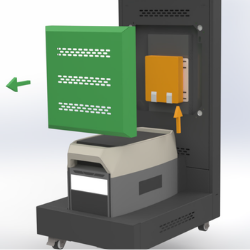
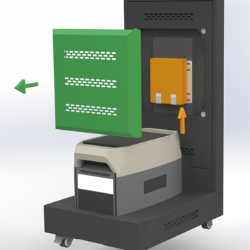
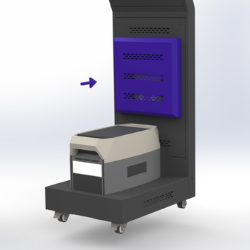
- Remove PC back cover.
- Press PC power button for 5 seconds to safely shut down the PC.
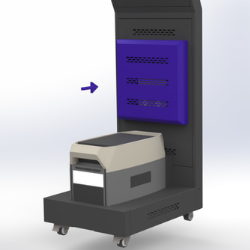
- Refit the PC cover for safe storage by aligning the cover with the magnets.
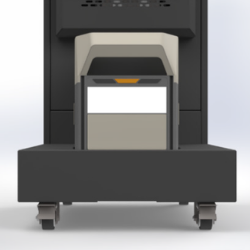
- Hold battery power button for 3 seconds.
4. HOW TO TURN THE LECTERN ON SAFELY
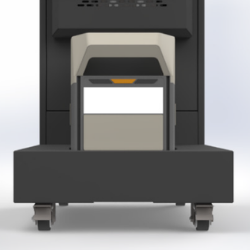
- Press the power (centre) button on the lectern.
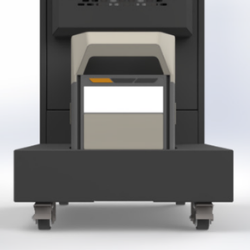
- If the screens do not come on, check whether the AC (left) button is on. If the AC button is not lit, press this to ensure power is flowing to the battery
- Power button can be found on the front of the PC.
5. HOW TO MOVE THE LECTERN SAFELY
- If the lectern is charging safely unplug the charging cable before moving the lectern to avoid creating a trip hazard or damaging the charging port.
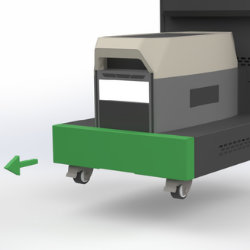
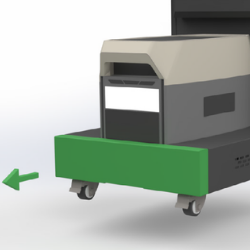
- Before moving, remove the base cover, release the breaks located on the back wheel of the lectern.
- Do not push, pull, or steer the lectern using the screens. Always hold the frame to avoid damaging the displays.
- The lectern should only be moved on smooth, indoor flooring. Avoid bumps, ramps, or uneven surfaces that could destabilise the unit.
- Move the lectern slowly and carefully to avoid injury or collisions.
- Once positioned in the desired location, straighten the wheels and re-engage the brakes to keep it securely in place and prevent accidental movement that could cause injury or damage.
6. ON OUTSIDE USE
- The lecterns are designed for indoor showroom use only. Please do not use them outdoors, as this can damage the wheels and expose the unit to unsuitable temperatures or weather conditions such as rain, moisture, or extreme heat/cold.
- Outdoor use may also affect battery performance and cause long‑term damage to the screens and internal components.
7. VIEWING BATTERY INFORMATION
- Once battery is on, press the power (centre) button to display battery information
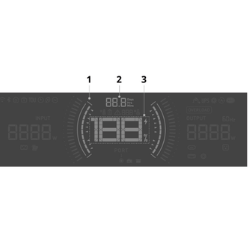
- Once on, the display will show the information below:
- Display charging limit (green) or discharge limit (red).
- Displays remaining charging/discharging time.
- Display current battery level.
8. HOW TO CHARGE AND UNPLUG THE LECTERN
- Remove the back cover to access the breaks.
- Release the brakes located on the back wheels.
- Move the lectern near a suitable socket (240v mains)
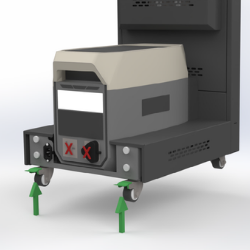
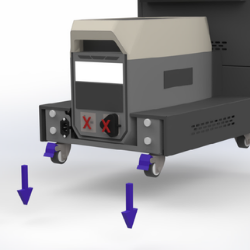
- Once in position, lock the breaks to prevent accidental movement.
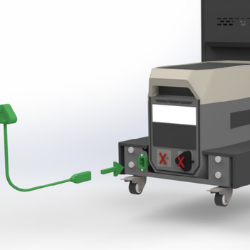
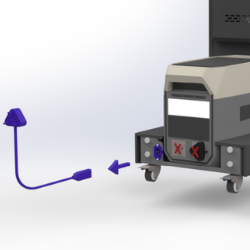
- Plug the charging cable into the lecterns’ power station.
- Plug the other end of the charging cable into a safe socket.
- Once charging is done, turn off power to the socket if a switch is available.
- Safely unplug charging cable at the socket and lectern end.
- Keep the lectern powered on to avoid an abrupt shut down because this could damage the PC.
- If moving the lectern to a new location, keep the base cover off to allow easy access to the brakes and follow guidance on moving the lecterns.
9. MANAGING THE LECTERN BATTERY
- The battery must always remain inside the lectern.
- Only use the provided charging cable to charge the unit.
- Do not plug other devices into the battery.
- Avoid leaving the lectern unused for long periods.
Do not leave the lectern uncharged or unused for more than 6 months. Doing so may permanently damage the battery and will void the manufacturer’s battery warranty.
If the lectern will be stored for an extended period, fully charge the battery, then discharge it to around 60% before storage. Repeat this charge/discharge cycle every 3 months to maintain battery health.
10. STORAGE AND MAINTENANCE OF THE LECTERN
- Store the lectern in an environment between –10°C and 45°C. For best battery health, a temperature range of 0°C to 30°C is recommended.
- Keep the lectern in a dry, cool, and well-ventilated space. Make sure it is stored securely to prevent it from tipping or falling.
- Use a soft, dry cloth to gently wipe and clean the lectern and battery. Avoid using liquids or cleaning sprays.
- Ensure the lectern is kept away from water sources, heat sources, strong magnetic fields, corrosive gases, flammable or explosive materials.
- Do not get the lectern wet or immerse it in any liquid. If used near water (e.g., entrances on rainy days), take extra care to keep it dry.
- Keep the lectern out of reach of children and pets. If children are nearby, they should be closely supervised.
11. BATTERY ERROR MESSAGE AND BATTERY WARNING SOUND
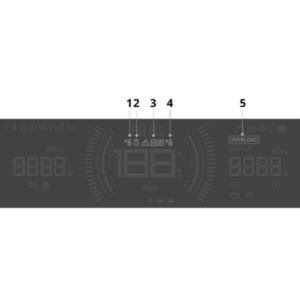
- 1 – High Temperature – if flashing, stop operating and place the unit in a location away from heat sources and with good ventilation.
- 2 – Battery Error – if flashing, it indicates an error has occurred, reach out to Saturn for troubleshooting.
3 – Error Code – if on, report this to Saturn for troubleshooting.
- 4 – Low Temperature – if flashing, move the power station to a warmer location to ensure usage within the appropriate temperature range.
- 5 – Overload Warning – if flashing, it means additional devices have been connected to the battery for charging. Disconnect additional devices to decrease power output.
If an error message appears on the battery screen that requires further investigation:
- Note the error message displayed.
- Report the issue to the Saturn Visual Solutions Support Team for troubleshooting.
- If the error message continues after troubleshooting, stop using the power station immediately.
- Do not attempt to charge or discharge the battery until Saturn Visual Solutions has advised further.
If the battery gives a continuous alarm (three beeps per second), this means a serious port malfunction has been detected:
Please follow these steps immediately:
- Stop using the lectern right away.
- Disconnect all cables from the power station (both input and output).
- Contact Saturn Visual Solutions for support and troubleshooting.
- Do not continue operating the lectern until the issue has been checked by Saturn.
12. SAFETY INSTRUCTIONS AND COMPLIANCE
- Do not disassemble, repair, or modify the lectern yourself. For any maintenance or service, please contact Saturn Visual Solutions.
- Always disconnect the lectern from all external power sources before carrying out any cleaning or maintenance.
- When unplugging the charging cable, pull the plug not the cord to avoid damaging the cable.
- Do not pierce or insert sharp objects into any part of the lectern or battery.
- Keep ventilation areas clear. Do not block or cover the lectern’s heat dissipation vents during use.
- Do not operate the lectern if the cord, plug, or any output cable is damaged. Contact Saturn Visual Solutions for support.
- Do not place heavy objects on the lectern or any of its components.
- Always place the lectern on a stable, flat surface to prevent tipping or injury.
- The charging cable plug acts as the disconnecting device. The wall outlet used must be easily accessible and properly grounded.
RISK OF ELECTRIC SHOCK
Never use the lectern’s battery to power tools or equipment used to cut into walls, access live wiring, or work on materials that may contain electrical components.
13. IN CASE OF EMERGENCY
- If you need to handle the lectern during an electrical fault, take precautions such as using insulating gloves.
- Stop using it immediately. Do not attempt to turn it on. Move it to a dry, well ventilated area and contact Saturn Visual Solutions for support.
- Follow your organisation’s established fire‑safety procedures and evacuation protocols before attempting to use any extinguishing equipment.
- Turn it off using insulating gloves if needed. Move it to an open area away from people and flammable materials. Dispose of it according to local regulations.
Technical Support Helpdesk Details
support@saturnvisual.com
0161 971 4600


